Tuesday, June 03, 2008


Wednesday, February 22, 2006
List all the processes running under the current user account.
This WMI script lists all the processes running under the currently logged on user account.
- - -
strComputer = "."
Dim strUserName
Set objWMIService = GetObject("winmgmts:\\" & strComputer & "\root\cimv2")
Set colItems = objWMIService.ExecQuery("Select * From Win32_ComputerSystem")
For Each objItem in colItems
strUserName = objItem.UserName
Next
Set objWMIService = GetObject("winmgmts:" _
& "{impersonationLevel=impersonate}!\\" & strComputer & "\root\cimv2")
Set colProcessList = objWMIService.ExecQuery _
("SELECT * FROM Win32_Process")
For Each objProcess in colProcessList
colProperties = objProcess.GetOwner(strNameOfUser,strUserDomain)
If strUserDomain & "\" & strNameOfUser = strUserName Then
WScript.Echo "Process " & objProcess.Name & " is owned by " _
& strUserDomain & "\" & strNameOfUser & "."
End If
Next
- - -
strComputer = "."
Dim strUserName
Set objWMIService = GetObject("winmgmts:\\" & strComputer & "\root\cimv2")
Set colItems = objWMIService.ExecQuery("Select * From Win32_ComputerSystem")
For Each objItem in colItems
strUserName = objItem.UserName
Next
Set objWMIService = GetObject("winmgmts:" _
& "{impersonationLevel=impersonate}!\\" & strComputer & "\root\cimv2")
Set colProcessList = objWMIService.ExecQuery _
("SELECT * FROM Win32_Process")
For Each objProcess in colProcessList
colProperties = objProcess.GetOwner(strNameOfUser,strUserDomain)
If strUserDomain & "\" & strNameOfUser = strUserName Then
WScript.Echo "Process " & objProcess.Name & " is owned by " _
& strUserDomain & "\" & strNameOfUser & "."
End If
Next
Wednesday, February 15, 2006
Message "Security Center is currently unavailable"
Q: When I run Windows Security Center I get this message:
The Security Center is currently unavailable because the "Security Center" service has not started or was stopped. Please close this window, restart the computer (or start the "Security Center" service), and then open the Security Center again.
A: To start the "Security Center" service, use these steps:- Click Start, Run and type Services.msc
- Double-click "Security Center" service from the listing
- Set the startup type of the service to "Automatic"
- Start the service by clicking the "Start" button in that applet.
Tuesday, February 07, 2006
Question: I'm attempting to find out how to use a WMI or VBScript to modify the default "Open With" program for a given 'File Type' in Windows XP. (Both Local and Remote systems using WMI) I have users that want to open .DOC files in WordPad.exe instead of WordView.exe.
Is there an Object or Method that exposes this availability? If so, does anybody have any code snips? I have to update about 1000+ computers and I would like to send out this script via SMS or during login.bat
Any help would be GREATLY appreciated!
Answer: The following command-line should do the trick for you:
%comspec% /c assoc .doc=WordPad.Document.1
-or-
CMD /c assoc .doc=WordPad.Document.1
This can be executed from a batch file.
Is there an Object or Method that exposes this availability? If so, does anybody have any code snips? I have to update about 1000+ computers and I would like to send out this script via SMS or during login.bat
Any help would be GREATLY appreciated!
Answer: The following command-line should do the trick for you:
%comspec% /c assoc .doc=WordPad.Document.1
-or-
CMD /c assoc .doc=WordPad.Document.1
This can be executed from a batch file.
Thursday, January 12, 2006
WinExit.scr Permissions
Question: When a limited user uses the Winexit screen saver, I get the following error message:
Answer: The Winexit.scr does not run correctly under Limited accounts by default. However, by altering the Permissions for a registry key, you can resolve the problem.
See : Logoff Screen Saver Does Not Function in Windows NT
Note that this KB was written for Windows NT, but very much applies to Windows XP as well.
For configuring the registry Permissions, see the KB below:
How To Use the Windows XP and Windows Server 2003 Registry Editor Features
"Error encountered while creating registry key. Make sure you have Set Value and Create Subkey Permissions."
Answer: The Winexit.scr does not run correctly under Limited accounts by default. However, by altering the Permissions for a registry key, you can resolve the problem.
See : Logoff Screen Saver Does Not Function in Windows NT
Note that this KB was written for Windows NT, but very much applies to Windows XP as well.
For configuring the registry Permissions, see the KB below:
How To Use the Windows XP and Windows Server 2003 Registry Editor Features
Thursday, December 29, 2005
Question: My system has no .CHM viewing ability. When i launch a .chm file i either get an application error from the program it relates to, or nothing happens. I believe it has something to do with C:\WINDOWS\hh.exe. Any ideas ?
Answer: One of these suggestions might help.
Clear the Temporary Internet Files
1. Close all Internet Explorer windows.
2. Type INETCPL.CPL in Start, Run dialog
3. Click the Delete Files button
4. Select Delete all offline content and click OK
5. Click OK to close the dialog
Clear the contents of the TEMP folder
Type %TEMP% in Start, Run dialog. Select all files in the Temp folder and delete them. Some files in the TEMP folder may be in use. If so, ignore the error and continue deleting the remaining files in that folder.
Register the core modules using these commands
regsvr32 ole32.dll
regsvr32 hhctrl.ocx
regsvr32 itss.dll
regsvr32 msxml3.dll
regsvr32 mshtml.dll /i
regsvr32 jscript.dll
helpctr.exe -regserver
And another step, suggested by Pete Lees [MVP]
You could try deleting the file hh.dat, which should be in this directory:
%userprofile%\Application Data\Microsoft\HTML Help
Hh.dat is a database file that saves such session information as the window position and favorites for the HTML Help viewer. The database file is automatically updated every time the HTML Help Viewer is used. If the database file does not exist, it is re-created. When updating the HTML Help viewer, the information in Hh.dat is not necessarily compatible with the new viewer, which can cause it to become corrupt.
References
PRB: HTML Help Viewer Causes Access Violation
PRB: Hh.exe Causes an Access Violation When Opening .chm Files
Reboot, and then try opening a CHM file to test.
Type in Start, Run: %Windir%\Help\access.chm
Answer: One of these suggestions might help.
Clear the Temporary Internet Files
1. Close all Internet Explorer windows.
2. Type INETCPL.CPL in Start, Run dialog
3. Click the Delete Files button
4. Select Delete all offline content and click OK
5. Click OK to close the dialog
Clear the contents of the TEMP folder
Type %TEMP% in Start, Run dialog. Select all files in the Temp folder and delete them. Some files in the TEMP folder may be in use. If so, ignore the error and continue deleting the remaining files in that folder.
Register the core modules using these commands
regsvr32 ole32.dll
regsvr32 hhctrl.ocx
regsvr32 itss.dll
regsvr32 msxml3.dll
regsvr32 mshtml.dll /i
regsvr32 jscript.dll
helpctr.exe -regserver
And another step, suggested by Pete Lees [MVP]
You could try deleting the file hh.dat, which should be in this directory:
%userprofile%\Application Data\Microsoft\HTML Help
Hh.dat is a database file that saves such session information as the window position and favorites for the HTML Help viewer. The database file is automatically updated every time the HTML Help Viewer is used. If the database file does not exist, it is re-created. When updating the HTML Help viewer, the information in Hh.dat is not necessarily compatible with the new viewer, which can cause it to become corrupt.
References
PRB: HTML Help Viewer Causes Access Violation
PRB: Hh.exe Causes an Access Violation When Opening .chm Files
Reboot, and then try opening a CHM file to test.
Type in Start, Run: %Windir%\Help\access.chm
Tuesday, November 22, 2005
Reset the entire registry permissions to defaults
This post is moved to the following URL:
Reset the Registry and the File Permissions in Windows XP - The Winhelponline Blog
Reset the Registry and the File Permissions in Windows XP - The Winhelponline Blog
Friday, October 14, 2005
File names missing in thumbnail view
Question from Denny:
Hi Denny,
See Tip #2 in the following page:
microsoft.com/technet/..tips/default.mspx
Which says:
To turn off filenames, hold down the Shift key when you click to open a folder in Windows Explorer or when you switch into thumbnail view. This will turn of the file names, giving more space for the thumbnails. Doing it again turns them back on.
Hope this helps!
"All of a sudden...only when I am in "thumbnail view" in "my Pictures"...the writing (heading) under each folder is'nt there. The folders are there...it's just that you have to float your cursor over each one so that the title of each one comes up. Once I go into any of the subfolders it's normal and ok. It's just the first "my pictures" main page. If I change view to icons, etc...I do get the headings or titles of the folders...but not in thumbnail view. Wierd huh? I hope you can help me"
Hi Denny,
See Tip #2 in the following page:
microsoft.com/technet/..tips/default.mspx
Which says:
To turn off filenames, hold down the Shift key when you click to open a folder in Windows Explorer or when you switch into thumbnail view. This will turn of the file names, giving more space for the thumbnails. Doing it again turns them back on.
Hope this helps!
Tuesday, October 11, 2005
Exe files open with Notepad?
Question:
"I am facing a very strange problem. I changed the program associated to a macromedia flash file to Notepad (right click -> properties -> open with -> Notepad) It somehow screwed everything up. Now all applications open on Notepad. Even when I click Internet explorer, a Notepad window opens, nothing works any more. I try to open System Restore and a Notepad window opens. Here is a screenshot."
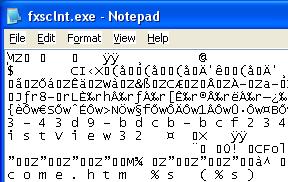
Using the Open-with option for executables is not really needed. The accidental changes that you've made is revertable by altering the registry. I've written a tutorial here which explains how to overcome this problem.
.EXE files always open with Notepad or any other application ?
I hope this helps.
Friday, October 07, 2005
.DAT file association in Windows XP
Question:
My .dat files have somehow become associated with Nero. How can I remove the
association and have the files with no associated program as it was originally.
Actually, .DAT files can be anything (video, data file or something else.) By default, .dat files are not associated with any application. If you've accidentally associated .DAT files with Nero or Windows Media Player, you can reset the associations to defaults.
Click Start, Run and type this:
reg delete HKCR\.DAT /ve /f
Subscribe to:
Posts (Atom)